Correct an incorrectly scanned meal
If a scan identifies the wrong food, you do not need to accept the result. The targeted correction flow lets you tell Carnivor what one detected ingredient actually is and review its updated estimate.
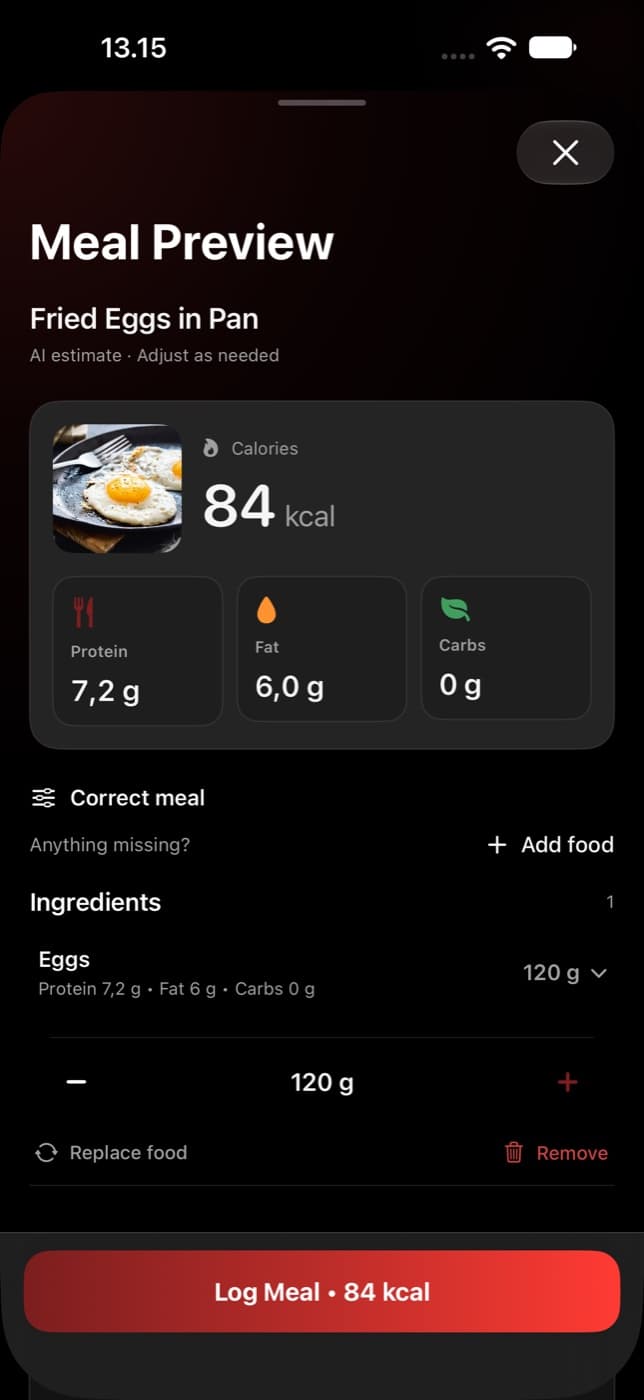
Food identity or portion size?
Use a correction when the food itself is wrong—for example, the scanner labels something as potatoes when it was actually chicken. If the name is right but the amount is wrong, adjust the portion directly instead.
Update the detected food
- Stay in Meal Preview before logging the meal. Expand the ingredient that was detected incorrectly.
- Tap Replace food. In the targeted scan-correction flow, this opens Correct detected food.
- Under What food is this instead?, enter a clear food name, such as “grilled chicken.”
- Tap Update food and wait for the result. Carnivor uses your correction and the original meal photo to update that ingredient.
- Review the new food name, gram amount, and macros. Adjust the portion if needed, then review the meal totals before tapping Log Meal.
The correction field accepts a food name of up to 120 characters. It is intended to identify the replacement ingredient, not to request changes to the whole meal.
What changes in the preview?
Carnivor replaces the selected food’s estimate and recalculates the meal totals. It can also update a meal title that was derived from the detected food names. Other ingredients are kept, so check each one separately if several foods were misidentified.
The updated gram amount is still an estimate. A corrected name does not guarantee the portion is now exact. Review the quantities and any missing ingredients before saving.
If the update fails
A failed correction leaves the preview unchanged and shows an error so you can retry. Keep the original meal image available and make sure your connection is working. Wait until the request finishes before trying another correction or logging the meal.
An analysis can expire after 24 hours, and correction also requires access to its original photo. If the preview is too old or the photo is unavailable, start a new scan rather than expecting the old correction request to work.
If the app opens a food catalog instead of the correction sheet, you are using manual replacement. Choose the correct food and check its portion, then verify the totals. The two flows have the same review goal but different steps.
Check the saved result
After you log the reviewed meal, check it in Nutrition. Correct ingredients and portions are also important for the historical nutrition totals and for Carnivore Score, which depends on the foods and calories you recorded.