Scan and log meals with AI
A meal photo can give you a starting estimate without entering every food from scratch. Carnivor detects foods, estimates portions, and builds a preview you can review before anything is logged.
Open the meal scanner
- Tap the + meal action and choose Scan Meal. The label or availability can depend on your app version and access.
- Allow camera access if you want to take a new photo. You can also choose an existing photo from your library.
- Frame the food clearly, then take or select the image. Wait for the analysis to finish.
If camera access is unavailable, use the photo-library option shown on the scanner. A photo of the complete plate with clearly visible foods gives you a more useful preview to check than an image where ingredients are hidden.
Review the meal preview
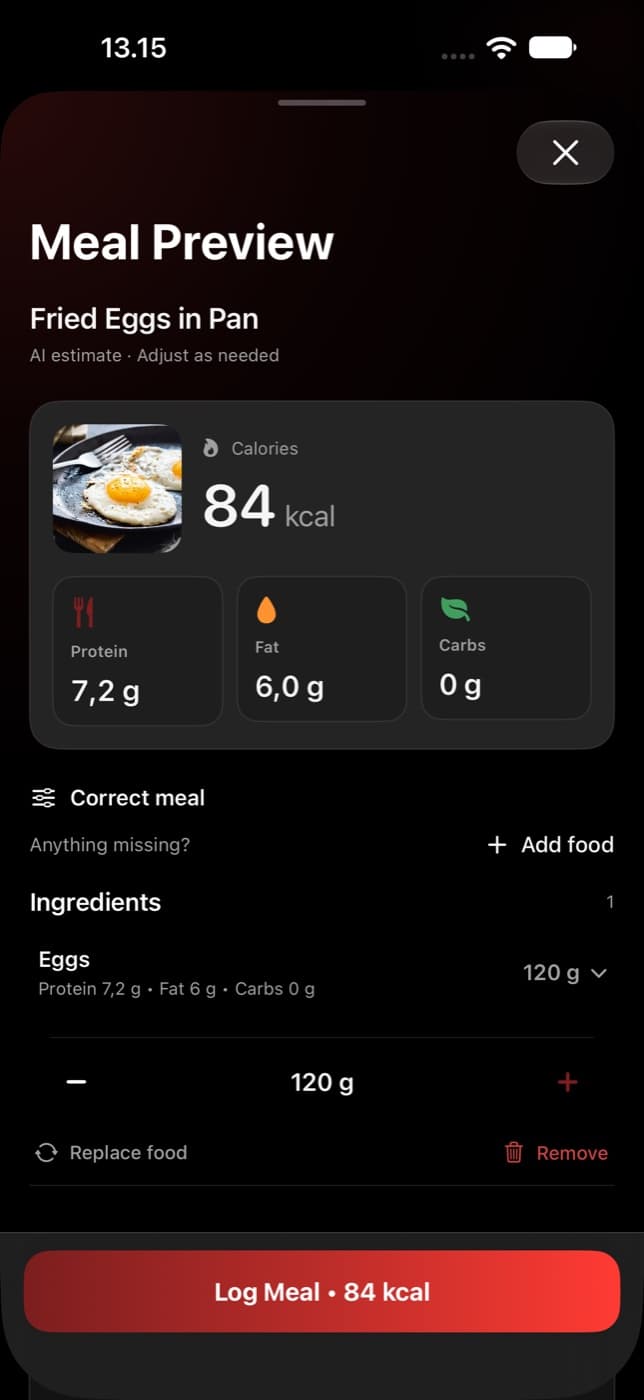
The preview lists the detected foods and shows estimated calories, protein, fat, and carbohydrates. These are AI estimates. Look at the ingredients as well as the headline totals: a plausible calorie number does not guarantee that every food was recognized correctly.
- Confirm each food name matches what you actually ate.
- Check estimated gram amounts against your portion.
- Look for missing ingredients, cooking fats, sauces, or foods that were counted twice.
Adjust foods and portions
Expand an ingredient to see its portion controls. Adjust the amount, remove an item that was not in the meal, or use Add food to include something missing. The meal’s totals update as the ingredient list changes.
If a detected food is the wrong ingredient, the correction flow can help you supply the right name and update that food’s estimate. Review the result again afterward, especially its portion.
Save the meal
- Check the final ingredient list, quantities, and nutrition totals.
- Tap Log Meal in the preview. Wait for the confirmation rather than submitting it again.
- Return to Today or Nutrition and check that the meal appears in your daily log.
If you are fasting, Carnivor may ask how to handle the active fast when you log food. Review that confirmation so your meal and fasting records match what happened. A planning flow can save a meal to a plan instead; planning and logging are separate actions.
If the scan does not finish
Use the retry action if analysis fails. Check your connection and allow the current request to finish before taking another photo. If the preview remains incomplete, you can use Describe Meal as an alternative entry method and review its estimates in the same way.